
PaperSave Tenant Mapping for a Company
This PaperSave feature allows you to map various PaperSaveCloud tenants (i.e., other than your default registered PaperSaveCloud tenant mapped with your Blackbaud Site ID) for your single company and, you can also restore the default PaperSaveCloud Tenant.
How to use the “Override PaperSave Tenant” feature in the Blackbaud Raiser’s Edge application?
1) Log in to the Blackbaud Raiser’s Edge Application.
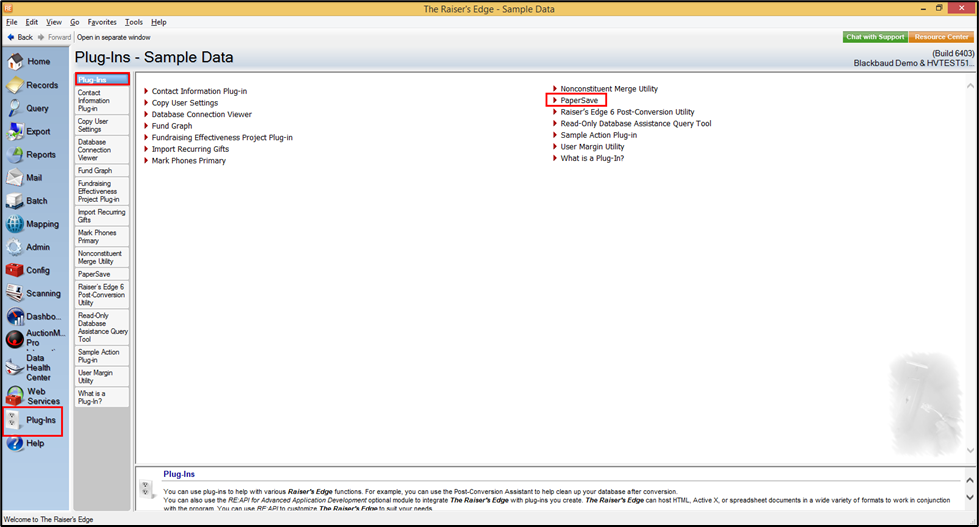
2) Click on the Plug-Ins option from The Raiser’s Edge bar and select PaperSave as shown in the below screen.
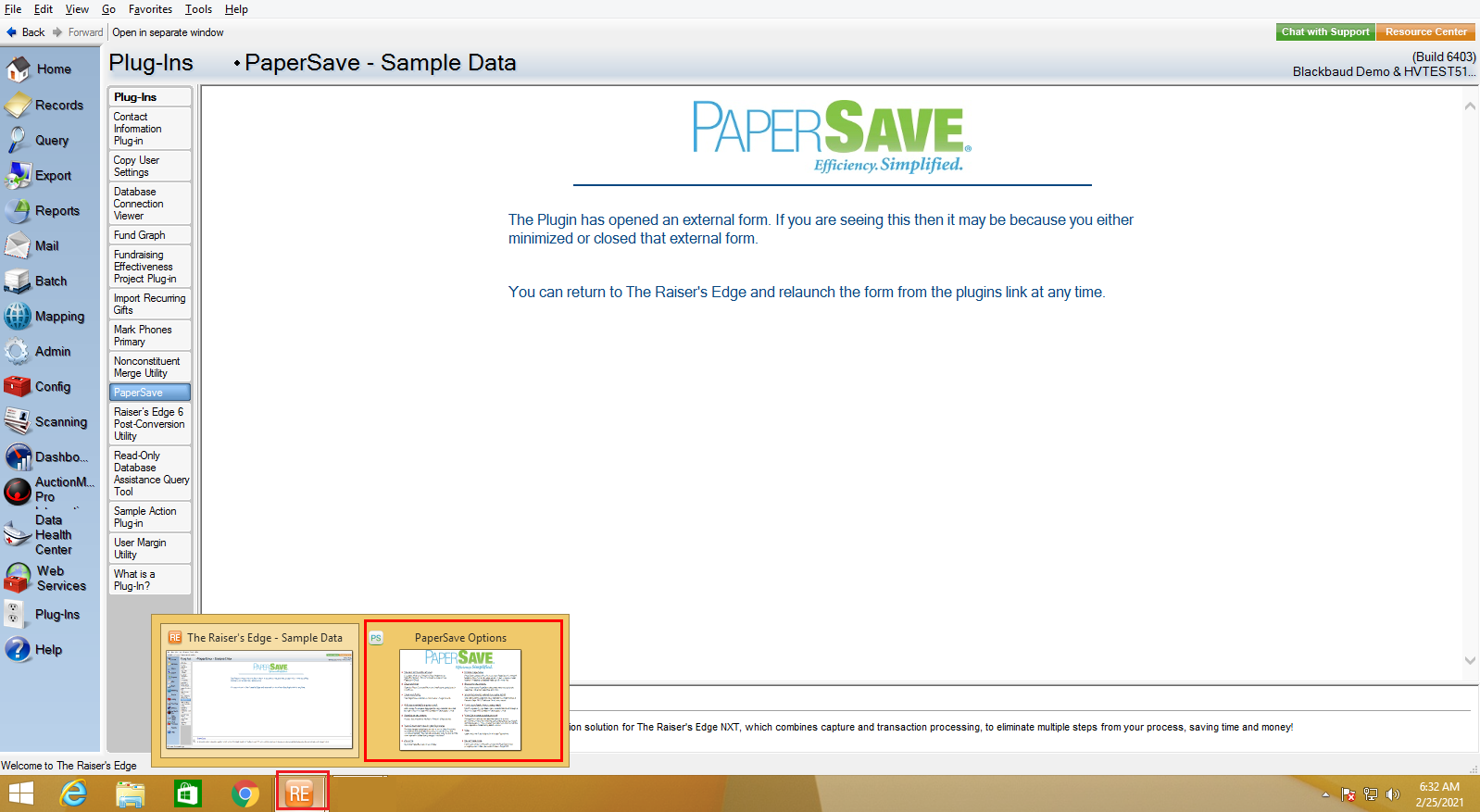
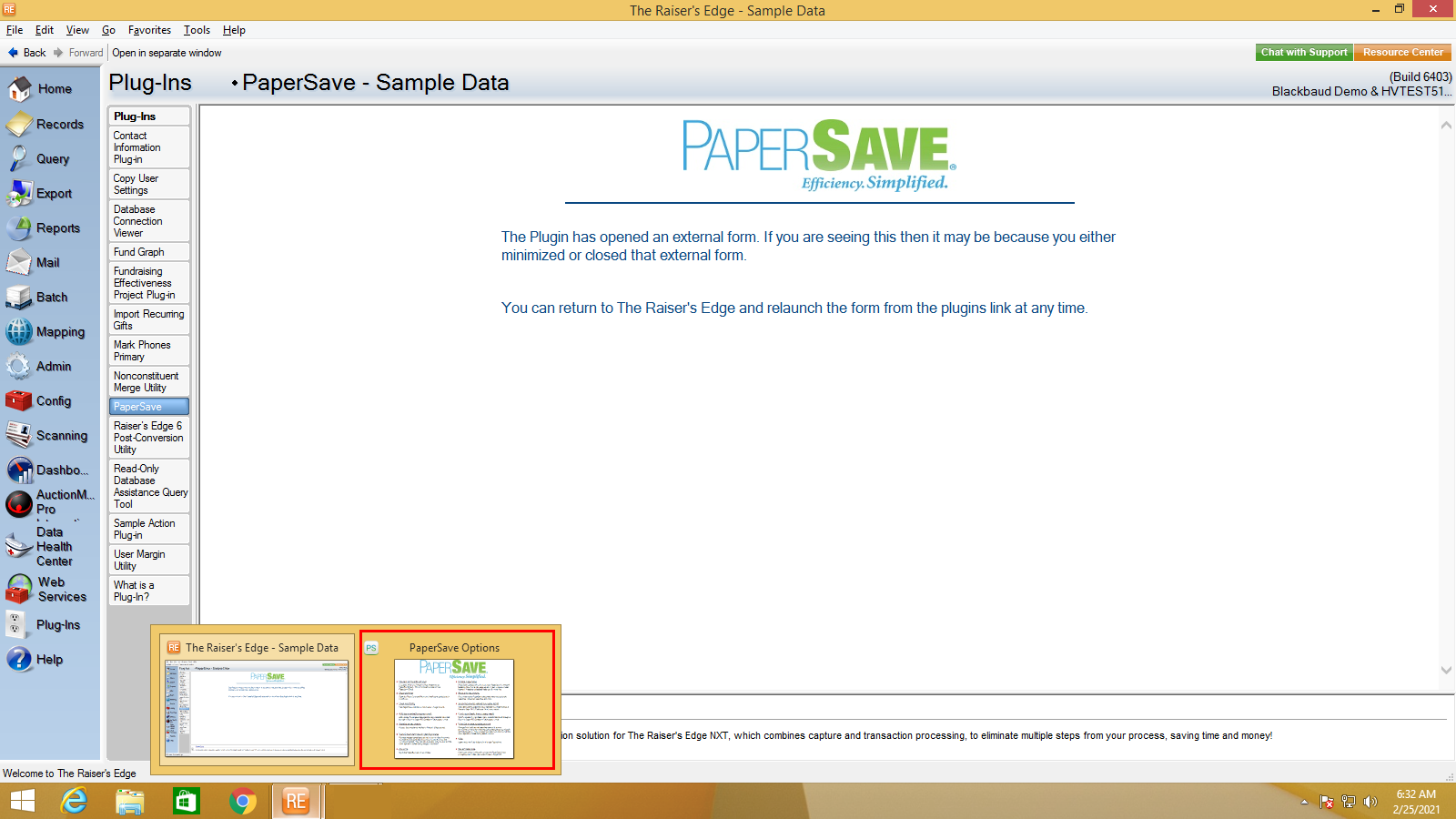
3) Once you click on PaperSave, it opens the PaperSave Options window, which gets automatically minimized. You can hover on the Raiser Edge application icon on the taskbar and select PaperSave Options to maximize the window, as shown in the below screen.
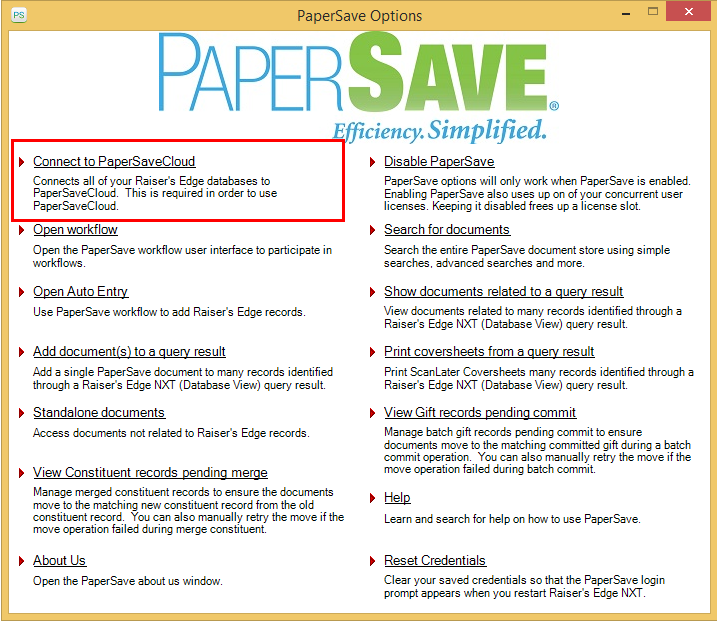
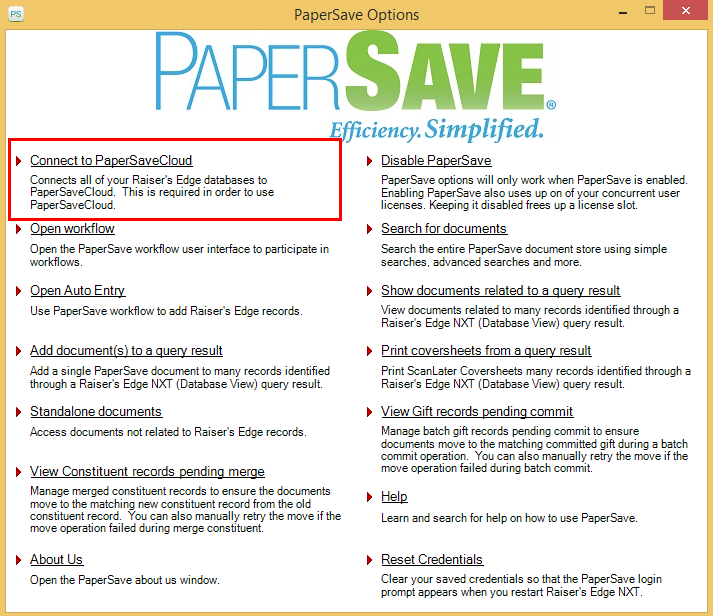
4) Click on the Connect to PaperSaveCloud option from the PaperSave Options window.
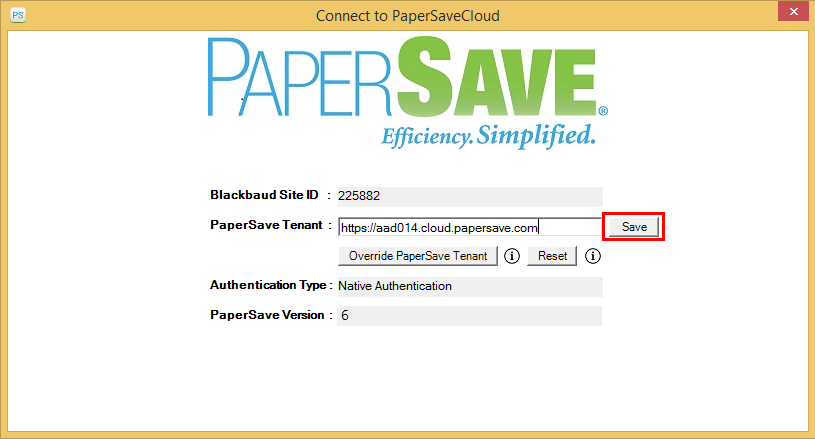
5) Now, the “Connect to PaperSaveCloud” dialog box will appear where you can see the details such as Blackbaud Site ID, PaperSave Tenant, Authentication Type, and PaperSave Version in a read-only mode.
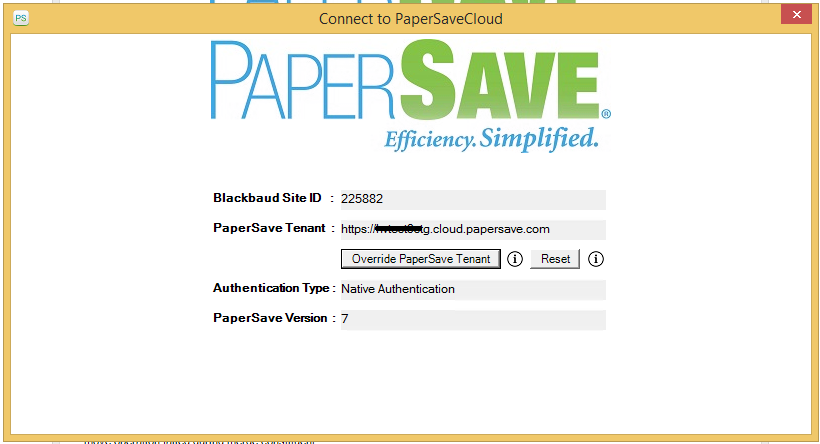
6) Click on the Override PaperSave Tenant to enable the PaperSave Tenant field in edit mode, as shown in the below screen.

7) Enter your desired PaperSave Application System site URL (for example, https://pstest.cloud.papersave.com ) and click on the Save button to allow PaperSave to validate your entered URL.
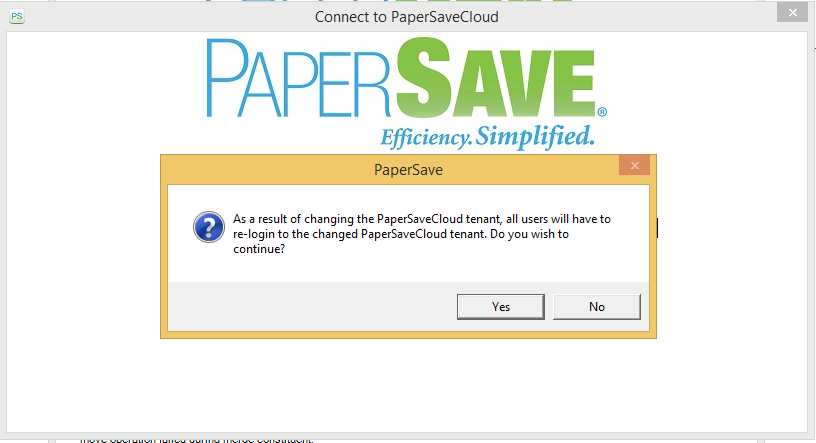
8) Once the PaperSave Application System site URL is saved, you will see a confirmation dialog to override the PaperSave tenant, as shown in the below screen. Click on Yes to override or on No to cancel the operation.
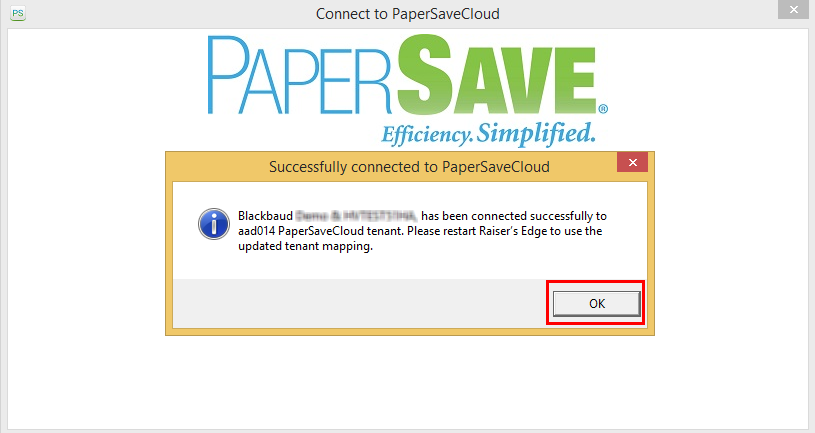
9) On clicking Yes, you will get a confirmation message after the successful overriding of PaperSave tenant, as shown in the below screen.
10) While performing validation or cancellation of Overriding the PaperSave Tenant, you might encounter the following errors/warning prompts:
- Validation Error prompt
This error occurs when you have inserted an invalid or incorrect PaperSave Application System site URL (For example, https://pstest.clouds.papersave.com or https://pstest.cloud.papersav.com)

- Connection Error prompt
This error occurs when it fails to connect to the entered PaperSave Application System site URL.

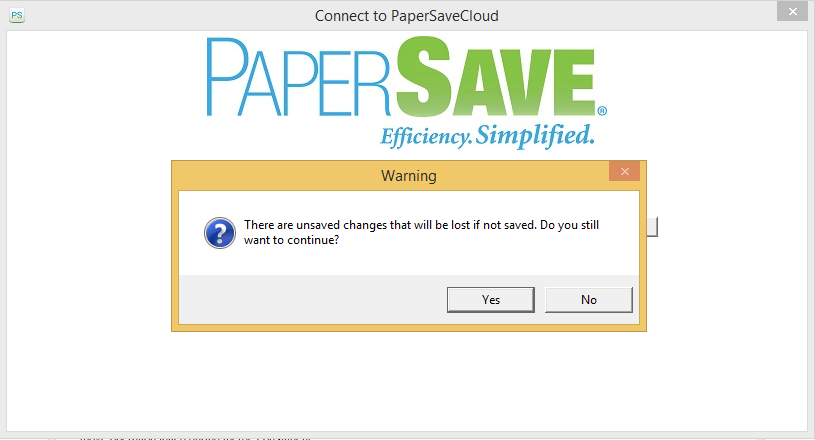
- Warning prompt
This warning occurs when you exit the “Connect to PaperSaveCloud” dialog box without saving the entered PaperSave Application System site URL .
11) Once the PaperSave tenant URL is updated, it will automatically disable PaperSave and delete your previous PaperSave tenant's saved credentials.
12) You will need to re-launch the Raiser’s Edge Application upon overriding the PaperSave Tenant URL.
How to “Reset” the default PaperSaveCloud Tenant?
1) Log in to the Blackbaud Raiser’s Edge Application.
2) Click on the Plug-Ins option from The Raiser’s Edge bar and select PaperSave as shown in the below screen.
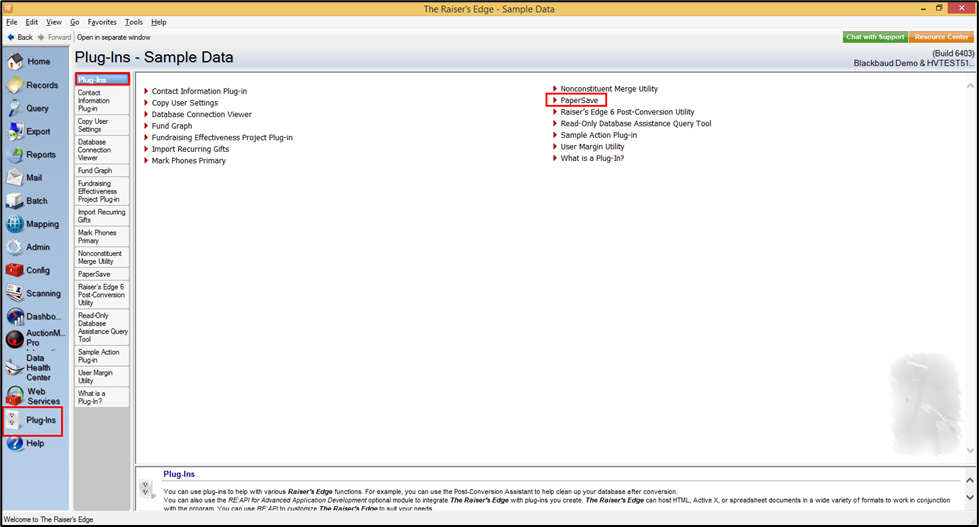
3) Once you click on PaperSave, it opens the PaperSave Options window, which gets automatically minimized. You can hover on the Raiser Edge application icon on the taskbar and select “PaperSave Options” to maximize the window, as shown in the below screen.
4) Click on the Connect to PaperSaveCloud option from the PaperSave Options window.
5) Now, the “Connect to PaperSaveCloud” dialog box will appear where you can see the details such as Blackbaud Site ID, PaperSave Tenant, Authentication Type, and PaperSave Version in a read-only mode.
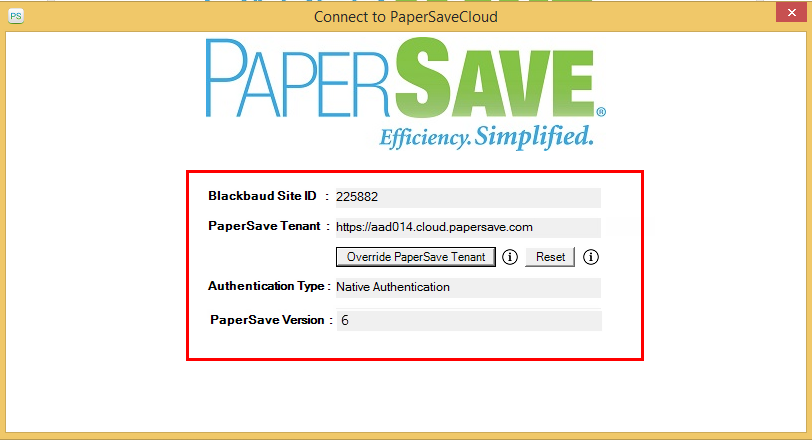
6) Click on the Reset button to restore the default PaperSave Tenant.
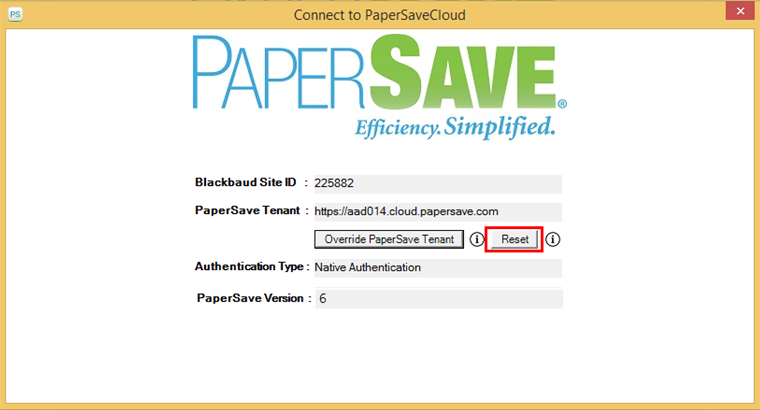
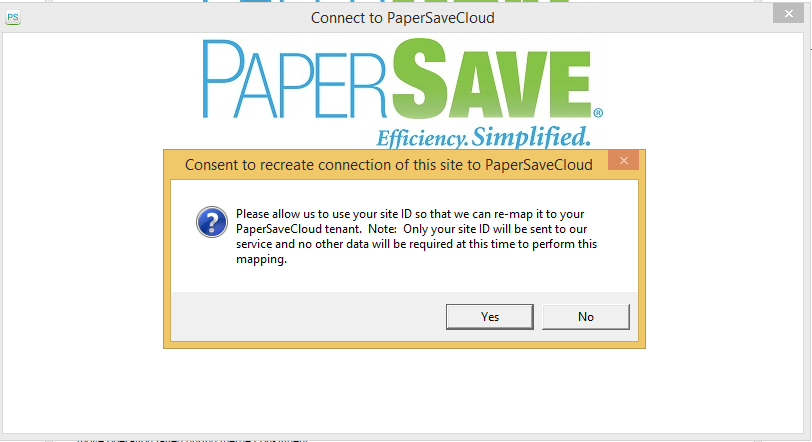
7) Once you click on the Reset button, a consent message will be prompted for confirmation to re-map your Blackbaud Site ID with the default PaperSave tenant. Click on Yes to proceed with the reset operation or No to cancel the re-mapping.
8) Now, you will get a confirmation message after the successful re-mapping of the default PaperSave tenant, as shown in the below screen.
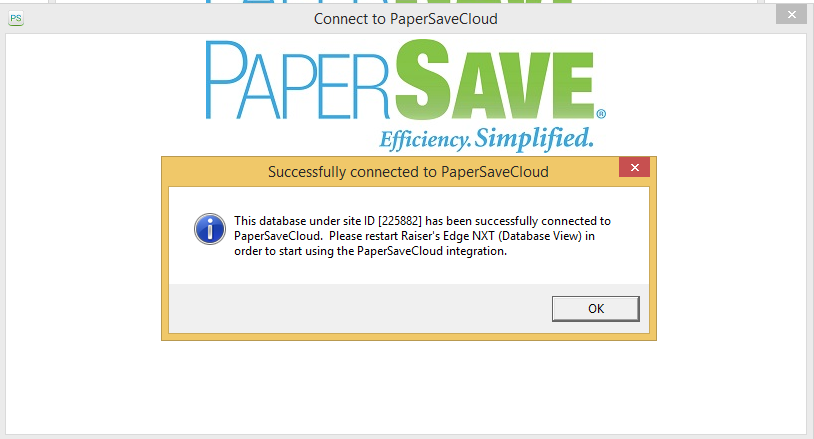
9) Once you reset the tenant, it will automatically disable PaperSave and delete your previous PaperSave tenant's saved credentials.
10) You will need to re-launch the Raiser’s Edge Application upon resetting the PaperSave Tenant.
Tip: If you are unable to enable PaperSave using your previously logged in PaperSave tenant credentials, we recommend you check the configured PaperSave Tenant details by following the steps from 1 to 5 from the above Override PaperSave Tenant or Reset PaperSave Tenant section.